To never get lost again, download offline maps on your smartphone or GPS before heading out. Use apps like Google Maps or HERE WeGo to select your destination, confirm the area fits your device’s storage, and keep maps updated for accuracy. Regularly manage storage to avoid clutter, and check maps for changes after trips. Want to learn how to set up and optimize your offline maps for all adventures? Keep going to discover more.
Key Takeaways
- Download offline maps through apps like Google Maps or HERE WeGo by selecting and saving desired areas for offline use.
- Ensure maps are updated regularly and stored efficiently to maintain accuracy and optimize device storage.
- Verify GPS functionality and support for offline maps before departure to prevent navigation issues.
- Customize maps by highlighting routes, landmarks, and points of interest for quick reference during travel.
- Preload maps before entering remote areas with limited connectivity to ensure continuous navigation confidence.
How Offline Maps Keep You Navigating Without Cell Service

Even if you lose cell service, offline maps guarantee you can still navigate confidently. They help conserve your device’s battery by eliminating the need to connect to cellular towers constantly. This means your phone isn’t draining power searching for signals, allowing you to extend your navigation time. Plus, offline maps often let you customize your map display, highlighting important routes, landmarks, or terrain features. This map customization makes it easier to focus on critical information without distractions. By preparing offline maps in advance, you ensure reliable navigation regardless of signal strength. You won’t have to worry about dropped connections or dead zones, giving you peace of mind during outdoor adventures or in remote areas. Offline maps truly keep you on track, no matter where your journey takes you. Simple strategies can help you set up these maps quickly and maintain them easily for ongoing use. Additionally, understanding map calibration can improve the accuracy of your offline navigation. Preloading maps ensures you have the necessary data available before venturing into areas with limited connectivity. Incorporating navigation settings can further optimize your experience by tailoring the app to your specific needs.
How to Download Offline Maps on Your Smartphone or GPS

Downloading offline maps is a straightforward process that guarantees you have access to navigation tools whenever you need them. To begin, open your preferred map app, such as Google Maps or HERE WeGo. Once inside, search for your desired location or area. Look for the option to download or offline map, usually found in the menu or settings. Select the area you want to store, making sure it fits within your device’s map storage capacity. Confirm your download, and the map will be saved locally on your device. This allows for seamless offline navigation, even without cell service. Remember, keeping your offline maps updated guarantees you have accurate directions anytime, anywhere. Proper map storage is essential for reliable offline navigation during your trips. Additionally, understanding how to manage your offline maps can help optimize storage space and ensure your maps stay current. Regularly updating your offline maps ensures you have the latest information, which is especially important when traveling through areas with frequent changes. Staying informed about map updates can also help you avoid outdated routes or missing points of interest. Being aware of map update frequency can help you plan when to refresh your data for optimal accuracy.
Setting Up Offline Maps Step-by-Step for Your Trip

Preparing your offline maps before a trip guarantees you won’t get lost without cell service. To set them up, start by opening your GPS app and selecting your downloaded maps. Use map customization options to highlight routes, landmarks, or points of interest for easy guidance. Familiarize yourself with the user interface, making certain buttons for zooming, panning, and route planning are clear. Follow these steps:
- Choose the area you need and download the offline map.
- Adjust map layers for terrain, labels, or satellite views.
- Customize map icons for quick recognition.
- Test the interface to understand guidance controls and ensure your device’s battery life is sufficient for the duration of your trip.
- Save your settings for quick access during your trip.
- Master the app’s features to optimize navigation and ensure you can navigate confidently even offline. Additionally, understanding how to update offline maps can keep your navigation accurate over time, especially if you revisit areas frequently. Being aware of the map data accuracy helps you rely on your offline navigation even in unfamiliar areas. Also, paying attention to user reviews can provide insights into any recent issues with map updates or accuracy.
Managing Storage Space for Offline Maps

Your GPS has limited storage, so you need to prioritize which maps to keep. Focus on downloading only the essential areas for your trip to conserve space. Also, regularly manage updates to guarantee your maps stay current without overflowing your device. Properly choosing essential camping gear ensures comfort and prevents irritation during extended use. Additionally, considering your outdoor activity type can help tailor your map selections to better suit your adventures. To prevent clutter, use the alarm clock features to set reminders for managing your offline maps and updates. Incorporating sustainable travel practices into your planning can also help reduce environmental impact and enhance your overall experience. Being aware of storage management techniques can further optimize your device’s capacity for offline maps.
Storage Capacity Limits
Managing storage space for offline maps is essential because GPS devices and smartphones have limited memory capacity. You need to prioritize which maps to keep and consider options like cloud storage to free up space. Be mindful of storage limits, as large map files can quickly fill your device’s memory, causing slow performance or crashes. Regularly delete outdated maps to make room for new ones. Use data encryption to secure your maps and personal data, especially when syncing with cloud services. Visualize your storage like a crowded closet—you must organize, remove clutter, and optimize space. Think of your device as a backpack that needs efficient packing to carry only what’s necessary, ensuring seamless navigation without running out of space for future updates or additional maps. Additionally, Free Floating principles can help you manage your storage effectively by maintaining a balance between keeping essential maps and decluttering unnecessary data. Incorporating storage management techniques can further optimize your device’s performance and ensure you always have the maps you need readily accessible. Recognizing the importance of net worth can also motivate you to invest in better storage solutions for your device. To enhance your overall experience, exploring professional services for custom storage solutions can provide tailored strategies to maximize your device’s capacity. You might also consider regular backups to prevent data loss in case of device failure.
Choosing Essential Maps
To make the most of your limited storage space, focus on selecting only the maps you’ll truly need for your trips. Effective map selection involves prioritizing areas based on your travel plans, avoiding unnecessary regions. Data prioritization helps you decide which maps are essential, ensuring you don’t waste storage on seldom-visited locations. Consider your typical routes and destinations, and only download maps for those areas. If you frequently travel between cities or regions, choose detailed maps for those zones, but skip remote or rarely visited places. This approach keeps your offline maps streamlined and storage-efficient. Regularly evaluate your map needs to make certain you’re not cluttering your device with outdated or redundant files. Additionally, being aware of essential map features can help you select the most useful layers and details for your trips. Incorporating map update frequency considerations ensures your offline data remains current and reliable. Remember that some devices offer storage management tools that can help you optimize space and automate updates, further enhancing your offline navigation experience. By managing your map selection carefully, you’ll maximize storage and always have the right maps ready when you need them.
Managing Map Updates
Keeping offline maps up to date is essential to guarantee accurate navigation and avoid potential issues during your trips. Managing storage space for offline maps involves understanding map update procedures and device storage management. To make certain smooth updates, consider these steps:
- Regularly delete outdated maps to free space.
- Prioritize essential regions to conserve storage.
- Use cloud backups to save space on your device.
- Schedule updates when connected to Wi-Fi to save data.
- Check available storage before downloading new maps.
Keeping Your Offline Maps Up-to-Date and Accurate

To guarantee your offline maps stay reliable, you need to keep them updated regularly. Verify the data accuracy by cross-checking with recent sources, and always use trusted providers for your map updates. Staying current helps you avoid surprises and navigate confidently wherever you go.
Regular Map Updates
Regularly updating your offline maps is essential to guarantee your GPS provides accurate directions. With a reliable map subscription, you stay current on new roads, closures, and landmarks. To keep your maps fresh, consider customizing your view, highlighting favorite routes, or saving specific areas. Imagine steering confidently through unfamiliar territory, knowing your maps reflect recent changes. Staying up-to-date ensures you’re not caught off guard by detours or new developments. Think about the ease of planning trips with the latest data at your fingertips. Regular updates also help you avoid outdated information, saving time and frustration. Keep these updates consistent, and your offline maps will serve as an accurate, personalized navigation tool whenever you need it most.
- Visualize new highways completing your route
- Picture landmarks shifting with urban growth
- Envision updated trails for outdoor adventures
- Imagine real-time changes reflected instantly
- Feel confident with the latest map details
Verify Data Accuracy
Ensuring your offline maps are accurate requires you to verify the data periodically, especially after major trips or when traveling to unfamiliar areas. Map data verification involves checking that your navigation reflects current road layouts, closures, or new developments. Conduct a GPS accuracy evaluation by comparing your device’s directions with actual road signs or landmarks. If discrepancies arise, update your maps or re-download the latest data to prevent navigation errors. Regularly confirming data ensures your offline maps remain reliable, reducing the risk of getting lost. Keep an eye out for outdated information, and don’t hesitate to refresh your map data when necessary. Staying proactive in map data verification helps maintain the highest level of GPS accuracy and ensures smooth travels.
Use Reliable Sources
Using reliable sources is essential for keeping your offline maps accurate and current. When you select trusted providers, you guarantee your maps reflect recent changes, new roads, and updated landmarks. This helps you customize your map to match your user preferences, making navigation smoother. To do this, consider the following:
- Regularly download updates from official map providers
- Check for app or firmware updates that enhance map accuracy
- Review user feedback for recent changes or errors
- Use sources that allow map customization based on your needs
- Guarantee the data aligns with your preferred navigation style
Troubleshooting Common Offline Map Loading Problems
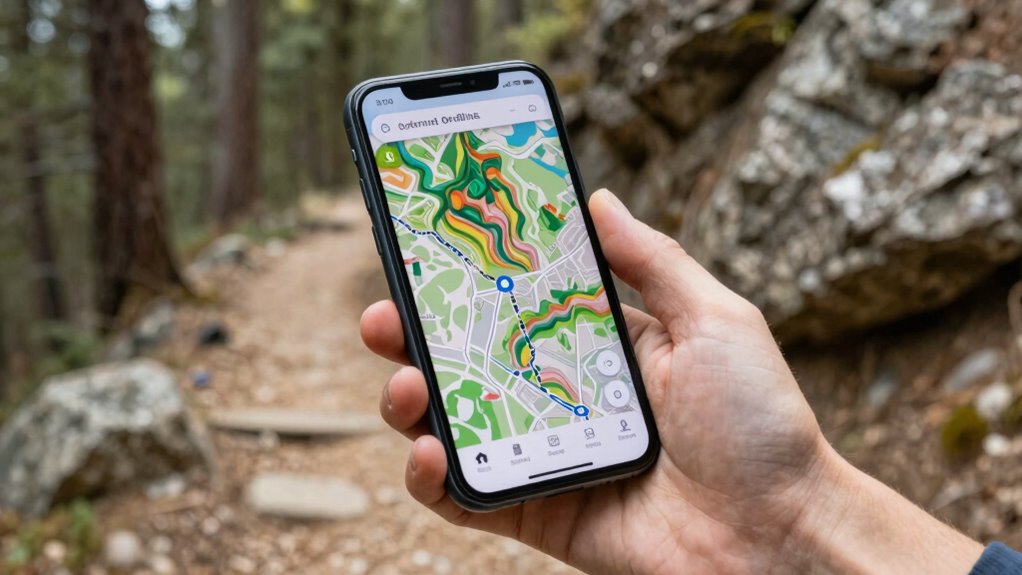
When offline maps fail to load properly, it can be frustrating, but many common issues have straightforward solutions. First, check your device’s storage space; insufficient space can prevent maps from loading. Ensure you’re using compatible offline map formats supported by your GPS app, as incompatible files won’t display correctly. Sometimes, map customization options can interfere—resetting to default settings might fix the problem. Verify that your offline maps are up-to-date and properly downloaded. If maps still won’t load, try reinstalling the app or updating its software. Also, confirm your device’s GPS is functioning correctly, since poor signal quality can hinder map rendering. With these steps, most offline map loading problems are easy to resolve, keeping your navigation smooth and reliable.
Comparing the Best Offline Map Apps and Software
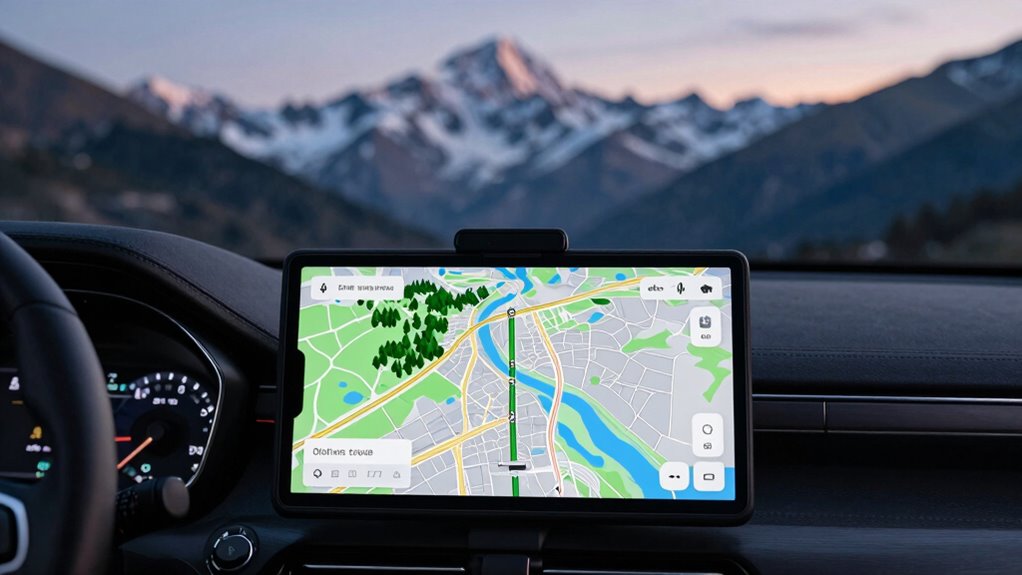
Choosing the right offline map app or software can considerably enhance your navigation experience, especially when traveling to areas with limited or no cellular coverage. When comparing options, focus on features like map layering, which allows you to see different data sets simultaneously, and the user interface, ensuring easy navigation and quick access to features.
Imagine:
- Seamless switching between satellite, terrain, and street views
- Clear, intuitive menus that reduce confusion
- Fast loading times even with large map files
- Customizable layers for points of interest
- Smooth zooming and panning for detailed exploration
Each app offers unique strengths, so consider how their map layering capabilities and user interface design match your navigation style and needs. This will help you select the best offline map software for your adventures.
Tips for Using Offline Maps Safely in Remote Areas

Traveling in remote regions with offline maps requires careful preparation to guarantee your safety. Before heading out, review satellite imagery to familiarize yourself with the area’s features and potential hazards. Use terrain analysis to identify challenging sections like steep inclines or water crossings, helping you plan safer routes. Always verify your maps are up-to-date and include detailed topography for better navigation. Carry a backup power source, like a portable charger, to keep your device functional. Keep a physical map as a backup in case your GPS or device fails. Be aware that offline maps can sometimes lack real-time updates, so stay cautious and avoid relying solely on them in unpredictable environments. Proper planning minimizes risks and keeps you safe in remote areas.
How Offline Maps Save You Time and Help You Avoid Getting Lost

Offline maps save you time by providing instant access to your route and surroundings without waiting for internet connections or data downloads. This quick access enhances navigation safety, preventing delays that can lead to confusion or missed turns. With map customization, you can highlight important landmarks, routes, or hazards, tailoring your map to your needs. This personal touch helps you stay focused, avoid distractions, and respond swiftly to changing conditions. Visualize yourself:
- Seeing detailed street layouts without lag
- Spotting nearby gas stations and rest stops instantly
- Quickly rerouting around obstacles
- Recognizing familiar landmarks for better orientation
- Saving time by avoiding unnecessary detours
All these features ensure you stay on track, avoid getting lost, and keep your journey efficient and safe.
Best Practices to Use Offline Maps Effectively

To make the most of offline maps, you should prepare your device before heading into areas with limited or no internet coverage. Start by customizing your map, focusing on the regions you’ll visit, so you don’t waste storage on unnecessary details. Use map customization features to highlight key routes, landmarks, or points of interest, making navigation easier. Additionally, consider offline map sharing options—sharing maps with friends or family can help them navigate without internet access too. Always keep your offline maps updated before your trip, ensuring you have the latest information. When using the maps, rely on clear, well-defined routes and avoid unnecessary zooming, which can drain your device’s battery. Proper preparation ensures seamless navigation, even in remote areas.
Frequently Asked Questions
Can I Use Offline Maps for Navigation During Turn-By-Turn Directions?
Yes, you can use offline maps for GPS navigation with turn-by-turn directions. Offline maps guarantee map accuracy even without an internet connection, so your device can still guide you accurately. Just make sure you’ve downloaded the relevant maps beforehand. This way, your GPS provides reliable navigation, helping you reach your destination without interruption, regardless of network availability. Offline maps are a smart choice for seamless, accurate navigation everywhere you go.
Do Offline Maps Consume Data When Viewed or Only During Download?
Think of offline maps as your trusty sidekick from a vintage video game. They only consume data when you download or update the maps, not when you view or use them. Your device relies on map storage once saved, so data consumption stays minimal during navigation. This way, you enjoy turn-by-turn directions without draining your data plan, making offline maps perfect for road trips or areas with poor signal.
How Often Should I Update My Offline Maps for Accuracy?
You should update your offline maps every 3 to 6 months to guarantee accuracy. Regular map update frequency helps keep your navigation reliable, especially with new roads or changes. For offline map maintenance, check for updates through your GPS app or device. Staying current prevents errors and enhances your experience, so set reminders to update periodically. This way, you’ll always have the latest information handy during your travels.
Are There Any Security Concerns With Storing Offline Maps on My Device?
Yes, there are security concerns with storing offline maps on your device. You should enable device encryption to protect your stored map data from unauthorized access. Be mindful of map data privacy, as sensitive locations might be exposed if your device is hacked or lost. Regularly updating your device’s security settings and keeping your software current can help safeguard your offline maps and personal information.
Can I Customize Offline Maps With Additional Points of Interest?
Just like adding landmarks to your favorite trail, you can customize offline maps with additional points of interest (POI). Most GPS apps let you do map personalization by including custom POI, such as restaurants or gas stations, which makes navigation more tailored to your needs. This feature helps you stay prepared and confident, turning your map into a personalized guide that’s perfect for any adventure.
Conclusion
By embracing offline maps, you gently guarantee you’re never truly adrift, even when signals fade. With a little prep, you can navigate confidently and enjoy your adventures without worry. Remember, a well-stocked map is like a trusted companion, quietly guiding you through the unknown. So, take the time to set them up; it’s a small step that makes a big difference in keeping your journey smooth and stress-free.